Documentation
eChessTactics
This guide explains every part of the app. It follows the in-app help, with more detail. The app is available in English and German; the flag icon at the top right switches the language, and your choice is remembered.
Getting started
- Open the app. A rating puzzle is waiting; the board is shown from the side of the player to move.
- Tap the puzzle-piece icon to choose what to train (see Puzzle modes).
- Press Play and make the moves on the screen. Or connect an electronic board (Connecting a board) and play on the real pieces: the LEDs show how to set up each position.
- Tap the magnifier to get a Stockfish analysis when the app allows it (Analysis).
The screen
The top row is a blue toolbar with these icons, from the left:
| Icon | What it does |
|---|---|
| Three lines | The menu (see The menu), which now also holds Create FEN. |
| Puzzle piece | Choose the puzzle mode. |
| Camera | Scan a position from a photo or an image. |
| Bluetooth | Connect a board. While a board is connected, tapping it again opens the board menu (small board with the differences to the screen, the functions of your board, end the connection). It is red while no board is connected and green when connected. |
| Magnifier | Switch the analysis on or off. It is greyed out while it is not available. |
| Eyes with a play button | Play a game against Tal (see Play against Tal). |
| Two arrows | Flip the board display. |
| Flag | Switch between German and English. |
Below the toolbar is the navigation bar: < previous, the task number (tap it, type a number and confirm to jump), > next, and a Play key that moves on automatically. While it runs it becomes a stop square; a long press sets the seconds between steps. The next-key turns green once the task is solved. At the right end sits a red square that stops a running analysis. In the endgames there is also a restart key.
Under the board: Play (solve on screen), the player-to-move pawn, flip, Send FEN (send the position to a connected board), and the hint and solution keys. Further down: your rating and the current mode.
Puzzle modes
Across all modes you can solve more than 730,000 different puzzles and positions. The puzzle-piece icon lists the modes:
- Beat the Bot (top of the list): play against 71 bots with a face and a name, ordered by strength (Beginners 700–900, Intermediate 1000–1400, Club players 1500–1700, Amateurs 1800–2000); the 71st, the little devil, plays at full strength. Each strength has five opponents with a different style: fearful, defensive, normal, eager to attack and aggressive. There are no hints and no move suggestions. You can take a move back (the circle with the back arrow left of Draw; on a board you play the bot’s move and put it back) and open the analysis, but a win in a game in which you used either does not count for the green check; the saved game carries a note. A green check shows that you have beaten a bot with White and with Black. The bots are the open-source engine Carballo (GPLv3) with their own style settings.
- Puzzle (Rating training): a random puzzle that matches your rating, from a database of more than 400,000 puzzles.
- Mate training: 7,200 mate puzzles in a fixed order that gets harder. It starts with 200 mate-in-1 puzzles in ten levels from easy to hard, then continues with mate in 2, 3, 4 and 5. Your progress is saved.
- Puzzle (Themes and rating): choose tactical themes and a rating range and build your own training. It does not change your rating.
- Endgames Mix: nearly 1,000 verified endgame positions, mixed from easy to hard.
- Endgames Themes: the same positions by theme; the pawn endgames come first.
- Opening tactics: more than 320,000 positions that grow out of 19 individual openings.
- Endgame school: checked teaching positions with exactly one winning move (see Endgame school).
- User positions: your own saved positions (shown once you have saved one).
- PGN Viewer: open and replay PGN games (see PGN viewer).
In the endgames you play against the engine for a win or a draw, and hint and solution are always available.
Solving and rating
In the rating training your rating changes with every puzzle: +15 if you solve it on the first try, +5 on the second, −5 on the third and −15 from the fourth try on. Using the hint costs 5 points and showing the solution 10 points.
The hint and solution keys unlock after three wrong attempts. Reset rating in the menu sets your rating back to 500.
Endgame school
The endgame school has 326 checked tasks in two lists, each from easy to hard: Endgame school (239 tasks, you win) and Endgame school – draw (87 tasks, you hold the draw). You play against Stockfish. In positions of up to five men the tablebase proves whether your move still wins or still holds the draw; a move that does not is taken back with a note. In bigger positions a task counts as solved after eight good moves in a row (win tasks) or twelve moves of holding the draw. A task only shows its theme. Hint and solution are always free. There are no pop-ups and no explanation texts, the school is made of exercises.
Themes include opposition, zugzwang, the rule of the square, king routes, outside and protected passed pawns, queen, rook, bishop and knight against pawns, rook and pawn against rook, minor-piece and rook endings, opposite-coloured bishops, fortresses and queen endings. Your progress is remembered.
Play against Tal
The eyes icon in the toolbar starts a real game against the Patricia engine, which plays very aggressively. You choose White or Black. With a connected board you set up the start position (the LEDs show what is missing) and Tal’s moves light up on the board; a Chessnut Move moves the pieces itself.
Tal adapts to you. Before every move he calculates three to five candidates with scores and chooses like this:
- The first moves he plays normally (opening).
- If it is about even, he takes the move closest to equality.
- If you are clearly worse (from about 1.5 pawns), he helps: a weaker but sensible move that brings you closer again. Only if such a move is among his candidates, with no sacrifice (never queen or rook).
- If you are hopelessly worse (about 3 pawns) or a mate is near, he plays at full strength.
- If you are clearly better (about 2 pawns), he keeps you roughly there; you have to convert the advantage yourself.
- If his best line wins material in the next moves (a hanging piece, a combination), he plays it through before he helps again.
The aim is to lead you into an endgame that you can win with technique.
Mood. A smiley slides along a colour strip below the board: right = you are ahead (green), middle = balanced (light blue), left = Tal is ahead (orange to dark red). Tal gets angry when you play well and smirks, up to devilish, when he leads. On boards with colour LEDs (iChessOne, Tabutronic Spectrum) the squares that light up have the same colour.
Abort ends the game at once and offers to save it. With the Draw button you offer a draw on your turn; Tal accepts when the position is roughly balanced and no mate is in sight. After 100 half-moves without a pawn move or capture the game is drawn by the 50-move rule. If a game ends by itself (mate, stalemate, insufficient material, threefold repetition, 50-move rule) a window offers open in PGN analysis, share game, new game or close. All finished games (Tal and bots) are appended to one file, Downloads/echesstactics/games.pgn.
Taking a move back (Elo game only). In the Elo game (a fixed level) the circle with the back arrow sits left of Draw: it takes back your last move and Tal’s answer, and you are to move again. On a board you first put Tal’s move back, the app notices it and does not calculate, and then the LEDs show which of your moves to put back. There is no takeback in the adaptive game. The saved PGN carries a note.
Analysing a Tal game. The switch Patricia | Stockfish in the heading line above the board chooses the engine of the analysis.
Analysis
Engine switch. While the analysis is on, a small switch Patricia | Stockfish sits in the heading line above the board, on the right. Stockfish is the default; your choice is remembered.
The magnifier starts a live Stockfish analysis under the board. You decide how many variations are shown with the − / + keys in front of the first line (1 to 5; the choice is remembered). Each line starts with its score in bold, always from the point of view of the side at the bottom of the board; +0.7 means that side is slightly better, #3 a mate in three. If a forced mate for the side to move exists, only that line is shown.
Arrows on the board show the first move of each variation:
dark green: the best move light green: other candidates red: a losing move (it gets mated or is about two pawns worse).
When is the analysis available?
- In tasks with a prescribed solution (rating training, mate training, themes, openings) only after three wrong attempts, and it closes again with every new task. Think of it as a special hint.
- Always in the endgames, in the PGN viewer, in the free analysis and for every imported position (FEN or photo).
- In Beat the Bot it can be opened as well, but a win in a game where you used it does not count for the green check.
Free analysis
Open the menu and choose Free analysis. The entry is greyed out while no board is connected. It ends the current training; the screen then always shows the position on your board.
- Place, remove and move pieces as you like. About 1.5 seconds after the last change a new analysis starts.
- Who is to move? The colour of the piece you placed last decides: placed a white piece last, Black is to move, and vice versa. Only placing counts, lifting does not. The initial position always means White to move.
- If a king is missing or the position is impossible, the analysis pauses and shows a hint. A position that is checkmate or stalemate is reported as such.
- Castling: a tick box appears only while the king and rook are still on their home squares. The default is no castling; you do not have to tap anything.
- On boards with colour LEDs the candidate moves light up too (see below).
- Close ends the free analysis and returns to your training.
Scan a position
- Tap the camera icon and take a photo of a diagram, or pick an image from your files.
- The position is recognised on your phone. Tap any wrongly recognised piece to correct it.
- Set whose move it is and the castling rights with the tick boxes.
- Tap Release image (no more corrections afterwards). The engine works out the solution in about five seconds; a progress window shows that it is working. If a board is connected it shows the target position with its LEDs, otherwise press Play and solve on the screen.
The buttons under the board: Share sends the position as FEN text, Save stores it in your collection of user positions.
User positions
Positions you save after scanning are kept in a file on your phone. A position that is already saved is not stored twice. As soon as one is saved, User positions appears in the puzzle menu. It opens in the same screen as the endgames: you play against the engine, hint and solution are always available and the analysis can be used. The positions come in the order you saved them.
The menu entry Share own database sends the whole file through Android’s share sheet (mail, messages, cloud). It is greyed out while nothing is saved.
PGN viewer
Choose PGN Viewer in the puzzle menu. The first time you pick a PGN file (for example from the Download folder). After that the last used file opens automatically; if it is gone, the file dialog appears again. The first game opens at once.
- The navigation bar has: previous, the move count in the middle, next, play/stop, a list key to choose another game and a folder key that asks whether to choose a file or to paste a PGN from the clipboard. eChessTactics also appears under “Open with” for .pgn files (file manager, mail, messenger): the file then opens straight in the PGN viewer. Games are named after their tags (White – Black, or the event); unnamed games are called “Game 1”, “Game 2”, and so on.
- The notation under the board is tappable. The last move is highlighted on the board.
- Comments appear as a card below the board, above the notation, and disappear with the next move. Where a position has variations, the card lets you pick one; the main line is the default. To see a different one, step back and arrive at that position again. The author’s own arrows in the file are ignored.
- Play plays one move every n seconds on the screen (long press sets n).
- The share icon next to the folder sends something on (mail, messages, cloud). If the open file holds several games, the app asks “What should be shared?” with Only this game (the shown game with comments and variations) and Whole file (with the number of games). A file with only one game is shared at once. A game you have just played and opened with Open in PGN analysis is shared directly as that game. For a newly entered game that is not saved yet, the icon shares the current state.
- The analysis shows one variation by default, does not start by itself (switch it on with the magnifier) and works on the position that really stands on a connected board.
With a board
- The board navigates: play the shown move (or the move of a variation) on the board and the game goes forward; take the move back and it goes back. Pop-ups close when you move on.
- When the pieces differ from the shown position, the LEDs show the differing squares so you can set it up.
- Colour-LED boards (Tabutronic Spectrum, iChessOne) show the game’s next move in blue and the engine’s best move in green. If both are the same, it stays blue. Where the game branches, the moves of the side variations light up yellow, so you can decide at the board without looking at the display. All other boards show only the game’s next move.
- A Chessnut Move is navigated with the keys in the app; its robot moves the pieces.
Trainer
The icon with the head and the gear (right of the share icon) turns the chosen game into an exercise: you have to find the move of the game. A game is one concrete opening variation; its tree of sub-variations is the basis. You choose:
- You play: White or Black.
- Exercises from (only for games with variations): All variations – at every point every move of the tree is right, and the opponent answers with a random branch, so you can end up in another branch. Or My way through the tree – the app asks at every fork which variation you follow (only the one move it starts with is offered, the line then runs on by itself to the next fork). Only that way counts, and the opponent plays exactly it. Back takes the last choice back, End here ends the way at that point.
- Run: From start to end, or Random positions: a random position from the game, you play the next two moves, then the next position comes.
A right move is answered by the opponent. A wrong move goes back: on the screen the position stays, on a board the LEDs show what to put back. The question mark shows the right move for three seconds. In the trainer, comments, analysis and the coloured move squares of colour-LED boards are off because they would give the answer away. With the arrows you walk through the exercises and can repeat them. With random positions the app waits 5 seconds after a solved exercise before the next one: the ring around the red square counts down, a tap on it switches the waiting off (you then continue with >), and a long press sets the seconds. At the end of a line a green check appears. The restart icon returns to the choice menu, and the green trainer icon ends the trainer.
E-board PGN download
The menu entry E-Board PGN Download fetches the games saved on your board and opens them in the PGN viewer. You choose the board:
- Chessnut – by Bluetooth; connect the board first.
- Supreme T2 – by USB cable with the board in PGN mode.
- eChessGW – the app offers a Bluetooth connection for the eChessGateway; afterwards you decide whether the games stay on the gateway or are deleted.
The files are saved in the folder Downloads/eChessboards.
Connecting a board
Tap the Bluetooth icon, choose your board type and connect. Supported, in this order:
| Board | Notes |
|---|---|
| Millennium T2 / ChessLink | Sensor board with LEDs. |
| Millennium eONE | Reports only which squares are occupied; the app knows the pieces from the task. Confirmed on a real board. |
| Chessnut | Sensor board with LEDs. Chessnut Move is also supported. |
| Certabo | Via Bluetooth or by USB cable (with a USB-OTG adapter on the phone; Android asks once for the USB permission). The USB entry is still labelled Beta in the list. Tested on a real board. Both ask which board you have: Certabo / Tabutronic Cerno, Tabutronic Spectrum or Tabutronic Sentio (occupancy only, no piece teaching; beta). |
| iChessOne | Two LEDs per square with colours: the app uses them in the free analysis and the PGN viewer. |
| Tabutronic Spectrum | Colour LEDs at the square corners. Chosen in the follow-up question of the Certabo entries; the LED colour of the set-up help is chosen in the menu, the free analysis and the PGN viewer use green, blue and red. Tested on a real board, with Bluetooth and with USB. |
| Tabutronic Bauerino (beta) | Certabo console without piece recognition. Set the board to eBoard; the menu entry asks for protocol v1 or v2, the side at the bottom is chosen in the menu. Not yet tested on a real board. |
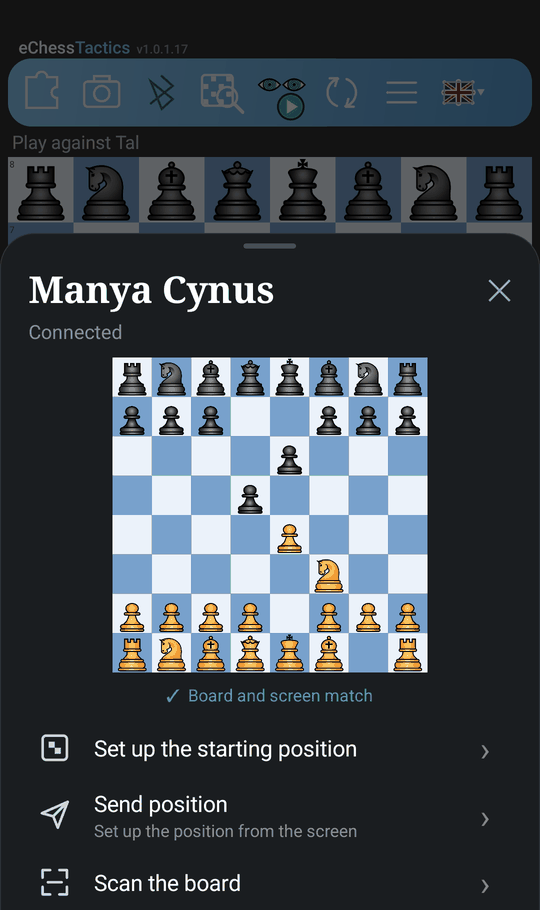
| Manya Cynus | Chess robot; the app sends the position to set up. |
On sensor boards the LEDs show which squares still differ from the target position; once it is reached you solve the task directly on the board. Wrong moves are reported and the pieces have to be put back.
Colour LEDs, iChessOne, free analysis: green = best move, blue = other good moves, red = a very bad move. Several moves light up at the same time.
Piece sets
Hold the white or black pawn in the row below the board (next to Stop and Send FEN) for about 1.5 seconds. A window offers four sets: Standard, Merida, MPChess and Bryan’s Italian. A tap on a set switches it on at once; it stays active and is used at every start, on all boards of the app. Merida (Armando Hernandez Marroquin) and MPChess (Maxime Chupin) are free piece sets under the GPL; Bryan’s Italian is a gift from Bryan Withby to this app.
The menu
All windows of the app (menu, lists, confirmations) are dark sheets in the colours of the board and sit at the top of the screen. Only in the middle of a running game (Tal, bot) and in the running trainer they sit at the bottom so that the board stays visible. The ‹ at the top left takes you one step back in every sub-menu.
- Free analysis – only with a connected board.
- Help – the short in-app guide.
- Reset status – rating (back to 500), mate puzzles (the mate training starts again at puzzle 1) and bot progress (deletes all wins and green checks of Beat the Bot). Every reset asks first.
- FEN tools – create a position from a FEN, show the FEN of the position, share it.
- E-board PGN download – fetch the games stored on a Chessnut, Supreme T2 or eChessGW (see E-board PGN download).
- Board menu (the Bluetooth symbol, while a board is connected) – a small board shows what your board reports, a red frame marks a piece that is only on the board and a yellow frame with a faint piece a piece that is missing on the board (compared with the screen), and a green check means that board and screen agree. Below are the functions of your board – set up the starting position and send the position (Chessnut Move, Manya Cynus), scan the board and "Black plays from below" (Manya Cynus), the player side (Chessnut Move), PGN download (Chessnut), the LED colour (Spectrum, iChessOne), "White at the bottom" (Bauerino) – and "End connection". The Bauerino protocol (v1 or v2) is chosen when you select the board, before it connects.
- Share own database and Share diagnostic log – for troubleshooting; the file goes through the Android share sheet and nothing is sent automatically.
- Support (Discord) – opens the electricchess Discord server for questions, bugs and wishes.
- Buy me a tea – an optional tip (5, 10, 20 or 50 euros) through Google Play. Nothing is unlocked by a tip.
- Privacy policy (at the very bottom) – opens the privacy policy.
FAQ
Why is the magnifier greyed out?
In tasks with a prescribed solution the analysis unlocks after three wrong attempts, so it does not give the answer away. In endgames, the PGN viewer, the free analysis and imported positions it is always available.
“Free analysis” cannot be selected.
It needs a connected board. Connect one with the Bluetooth icon first.
The board does not show up.
Switch the board on, make sure Bluetooth is on and that you picked the right board type in the connection list. Allow the “Nearby devices” permission when Android asks. If it still fails, save the diagnostic log from the menu and send it on the Discord server.
Where are my positions and my rating stored?
Only on your phone. Clearing the app data or uninstalling the app deletes them. Use “Share own database” to keep a copy of your positions.
Does the app use the internet?
No. The app makes no connections itself; the network permission comes from Google’s billing library for the optional tip. See the privacy policy.
Can I take a move back in a game against a bot or Tal?
Yes, in Beat the Bot and in the Elo game against Tal (not in the adaptive game): the circle with the back arrow left of Draw takes back your last move and the answer. In Beat the Bot a win in a game with a takeback (or with the analysis opened) does not count for the green check.
Where do I report a problem or ask for a feature?
On the Discord server electricchess.